Annotation Review Guidelines
Getting Started
When reviewing annotations, consider the following:
The model starts without any context about classes. Ensure annotations give enough context for each detection class. Too little context (small annotations) leads to poor performance. Too much context (large annotations) makes it hard for the model to distinguish details.
Annotation consistency is crucial. Consistent annotations with clear visual features improve detection performance. While some classes may have indistinguishable features, strive for consistency. Use your best judgment to classify objects that may appear different across frames.
In general, if something doens’t look right, add a comment! It may warrant a larger conversation on how annotations are done for a specific class.
Accessing the Annotation Platform
Navigate to https://cvat.sandau.dev and login with your provided credentials.
Once logged in, the
Taskspage will be shown.
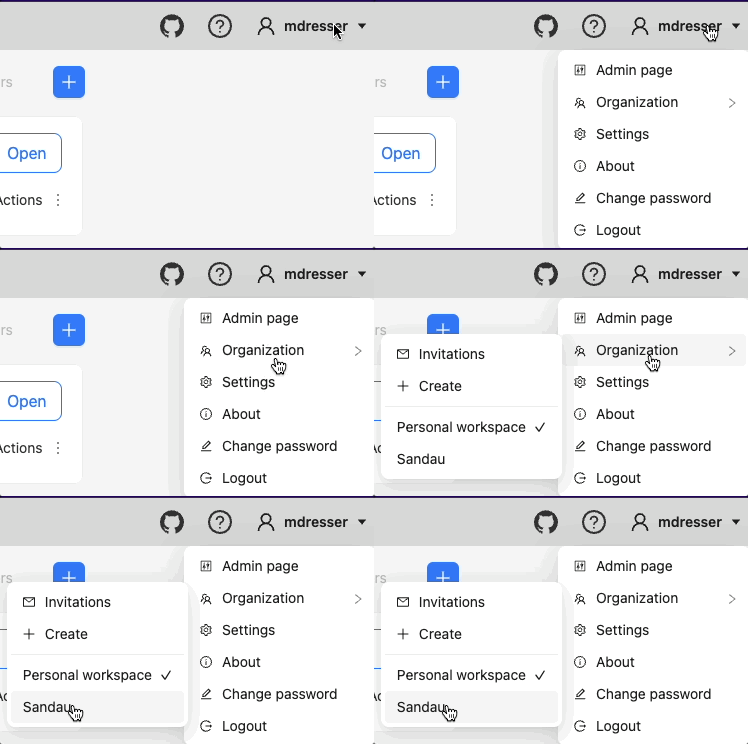
- If you do not see any tasks but would expect to, ensure that you are using the correct “Organization”. To change or view your current organization, select the drop down menu with your username on the top-right of the page. Select “Organization” from the drop down menu and select your organization.
- If you were provided a direct link to a task or a link to a specific frame (for example:
https://cvat.sandau.dev/tasks/3/jobs/3?frame=96), now that you are logged in, change the URL in your web browser and navigate directly to that link and skip step 3.
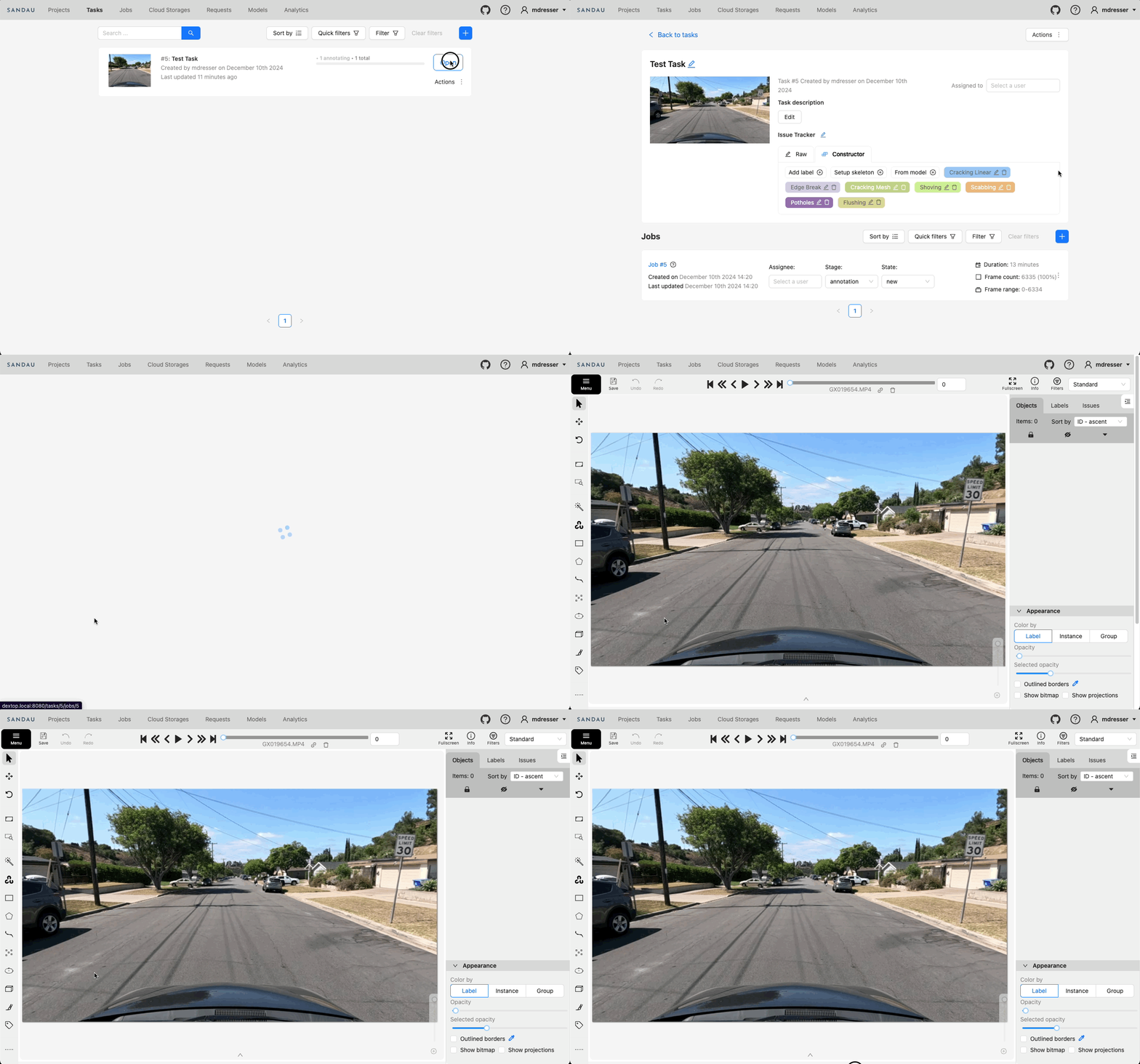
Select the task you wish to review by clicking the task’s corresponding “Open” button. Select the “Job”. Once selected, the annotation interface will be displayed.
Note
Your interface may look slightly different. Please see the next step to confirm the interface mode is set correctly.
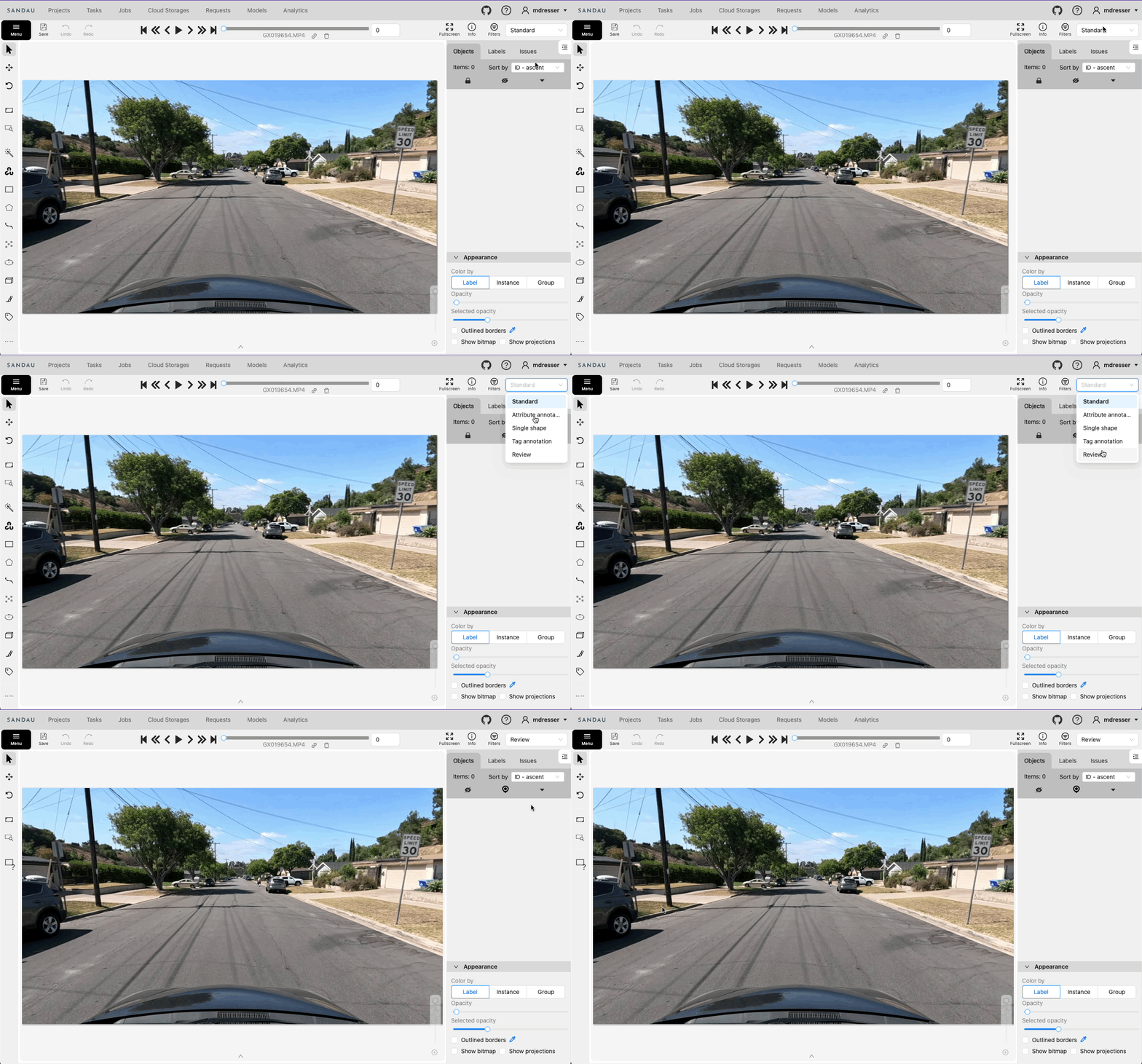
- Ensure the annotation interface is set to “Review”. Select the drop down menu on the top right of the annotation interface and select “Review”.
Reviewing Annotations
Note
We highly recommend becoming comfortable with the shortcut keys as they will speed up actions over time.
Navigating through a video
To step through images, use either the highlighted buttons on the top of the interface as shown in the image below or use the
FandDkeys to step forward or backward respectively.
To navigate to the next or previous image which contain annotations, use the
Left ArrowandRight Arrowkeys.
Adding a comment to an image
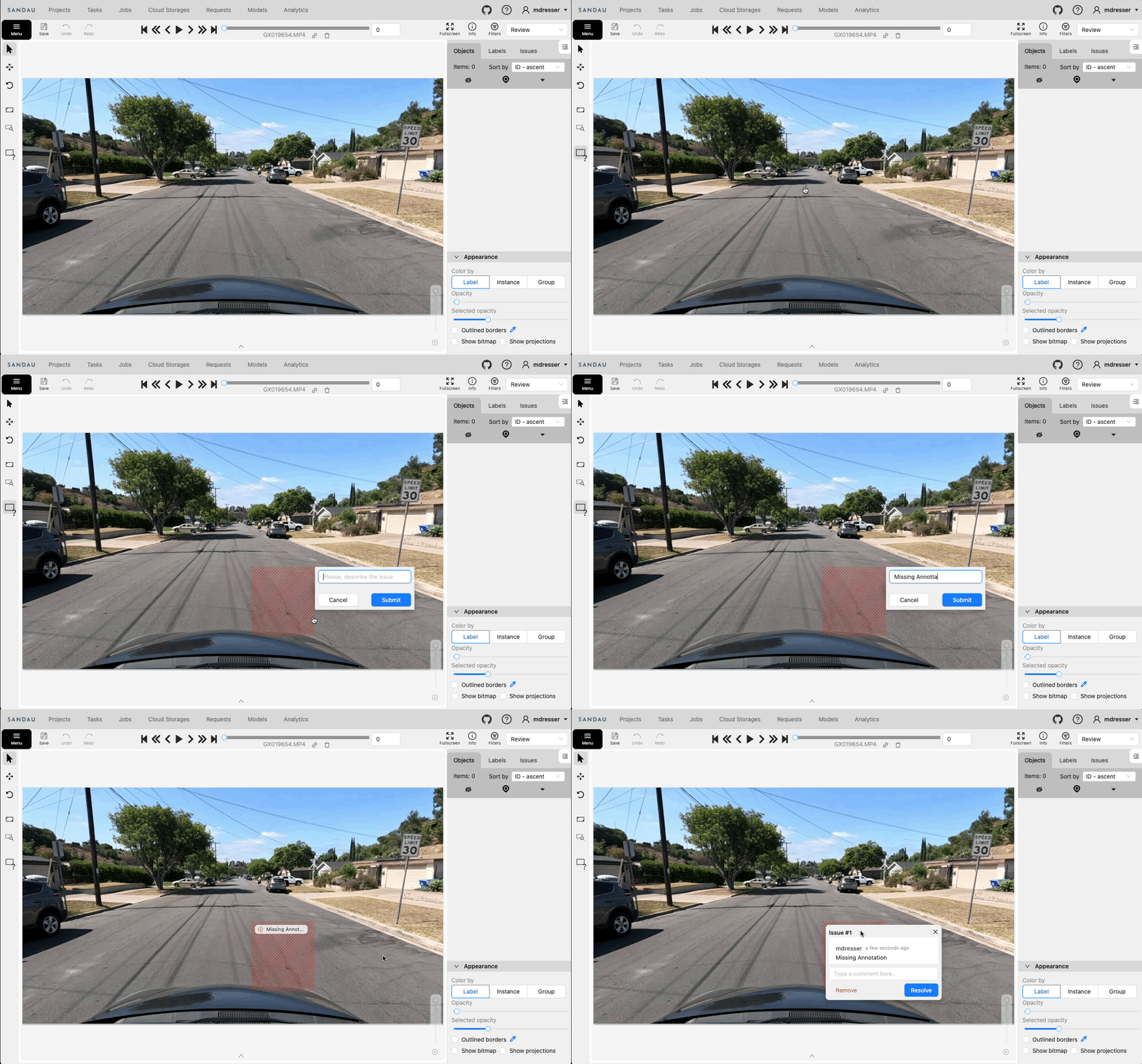
Add a comment by either selecting the “Open an issue” button on the left-hand toolbar or by pressing the
Nkey. Once selected, the curser will turn into a pointer-hand. To add a comment to the image, click and drag on the image to create a box indicating the area of interest that the comment refers to. Select “Submit” or press theEnterkey to submit the comment.