GoPro Settings Guidelines
Supported GoPro Models
- GoPro HERO 13
- GoPro HERO 11 (Recommended)
- GoPro HERO 10
Required GoPro Settings
Video Quality and Settings
Proceed through the following steps to ensure the settings for the GoPro are properly set.
The following examples are from a GoPro HERO 11 Black.
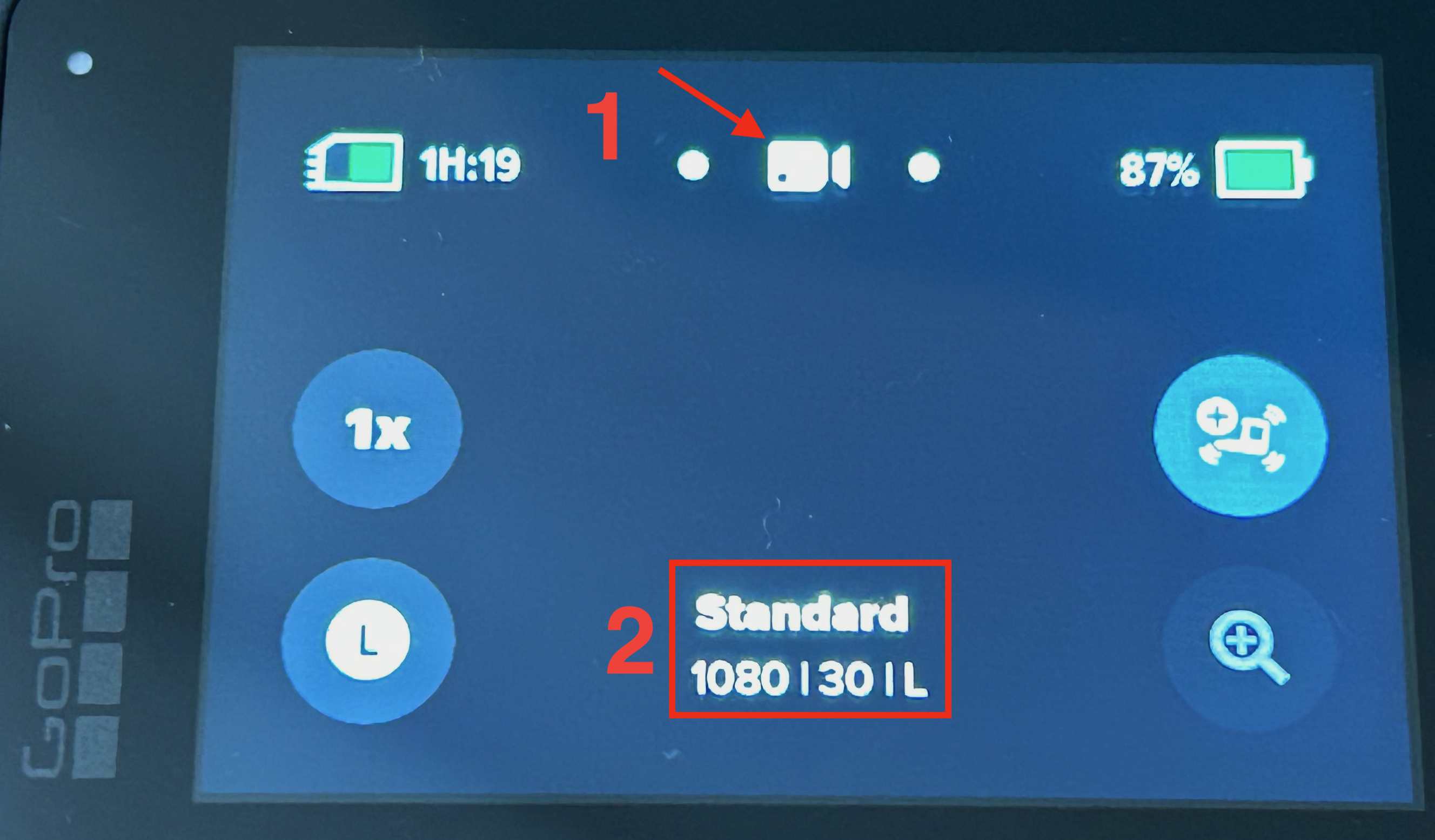
- Power on the GoPro. On the main menu on the back screen, ensure that the device is in video mode (#1).
- Tap the video settings as shown near #2 to open the video settings.
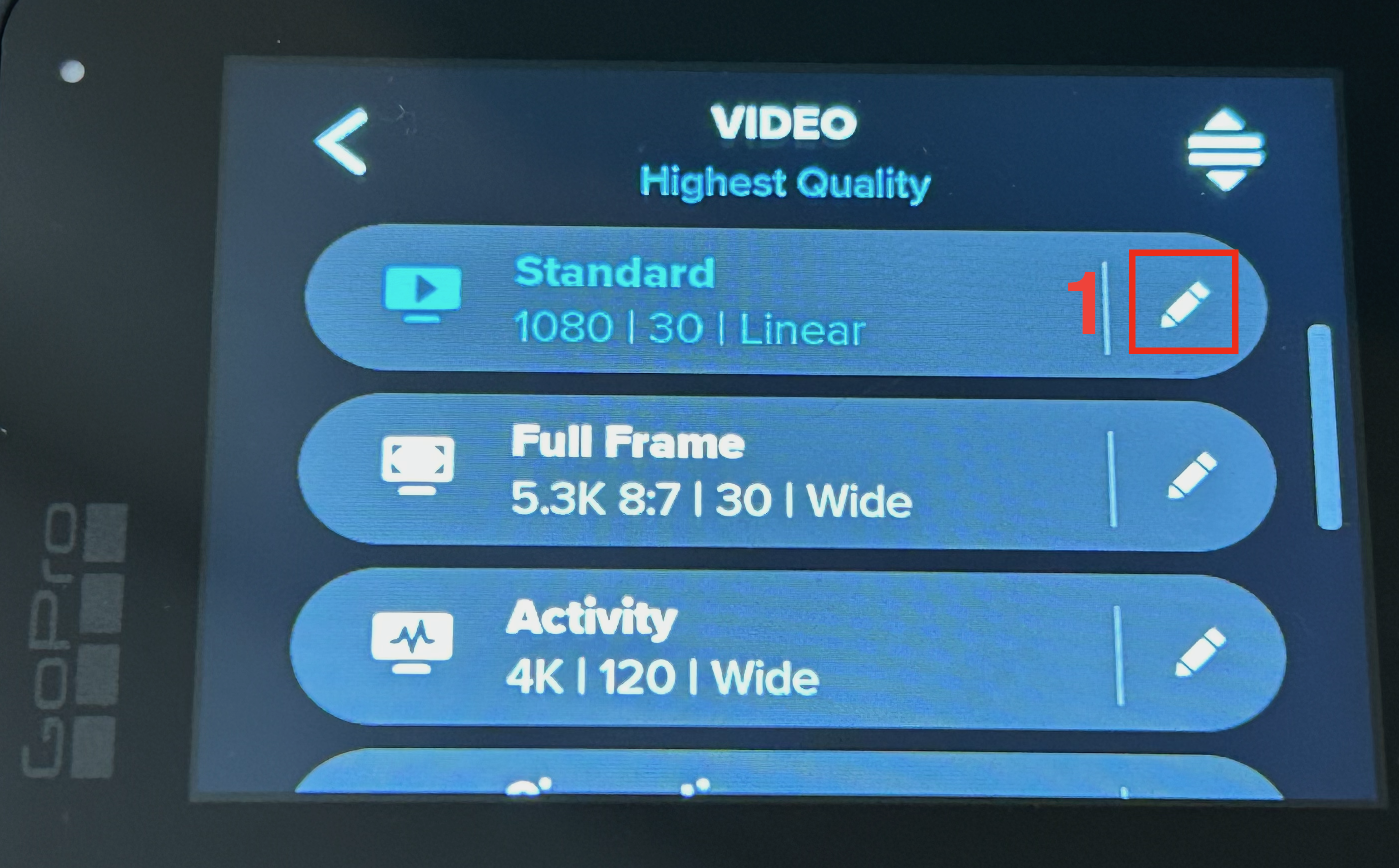
- In the video settings, tap the pencil icon (#1) on the “Standard” row.
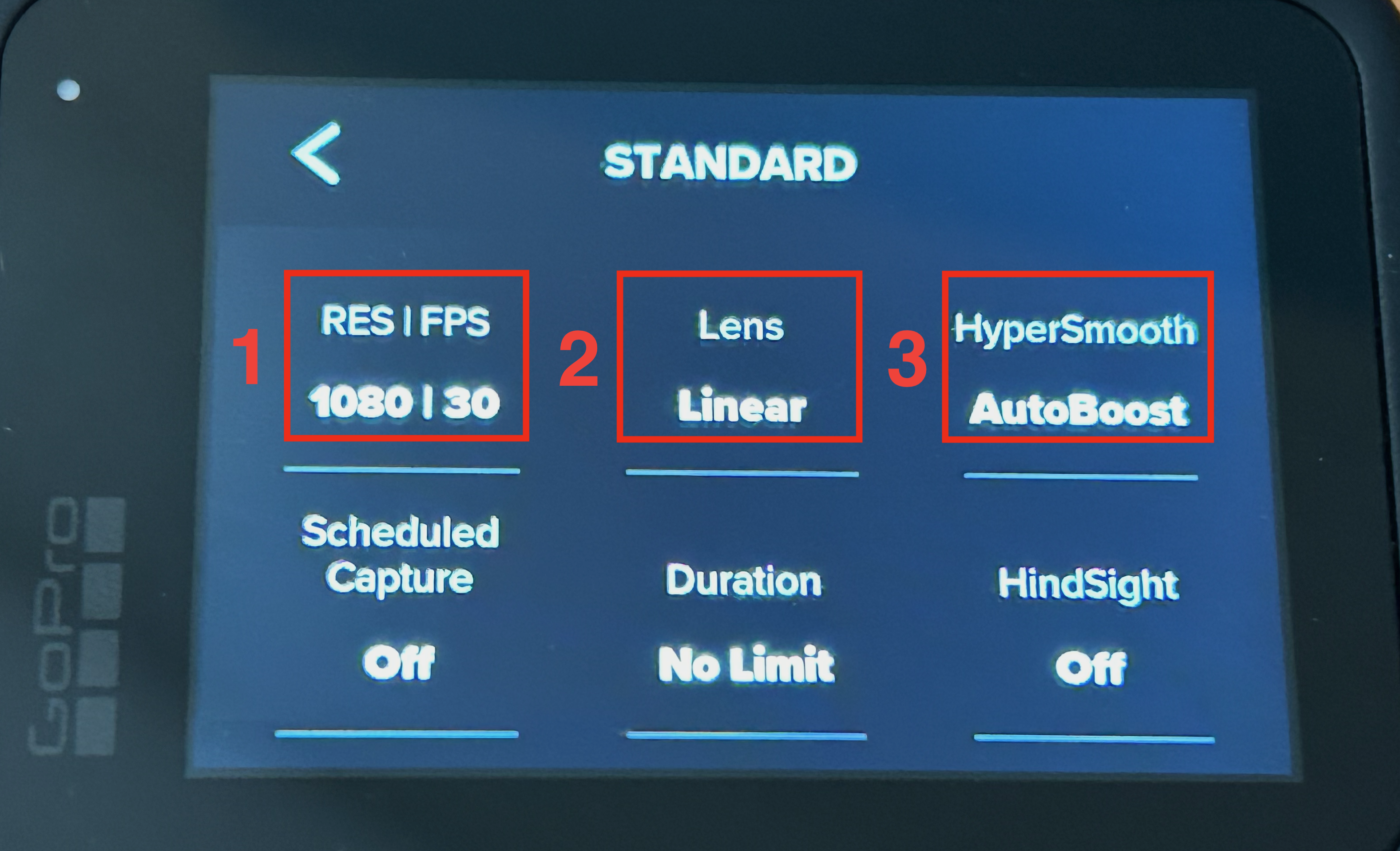
- Configure the video resolution & FPS (Frames Per Second) by tapping on the “RES|FPS” option (#1).
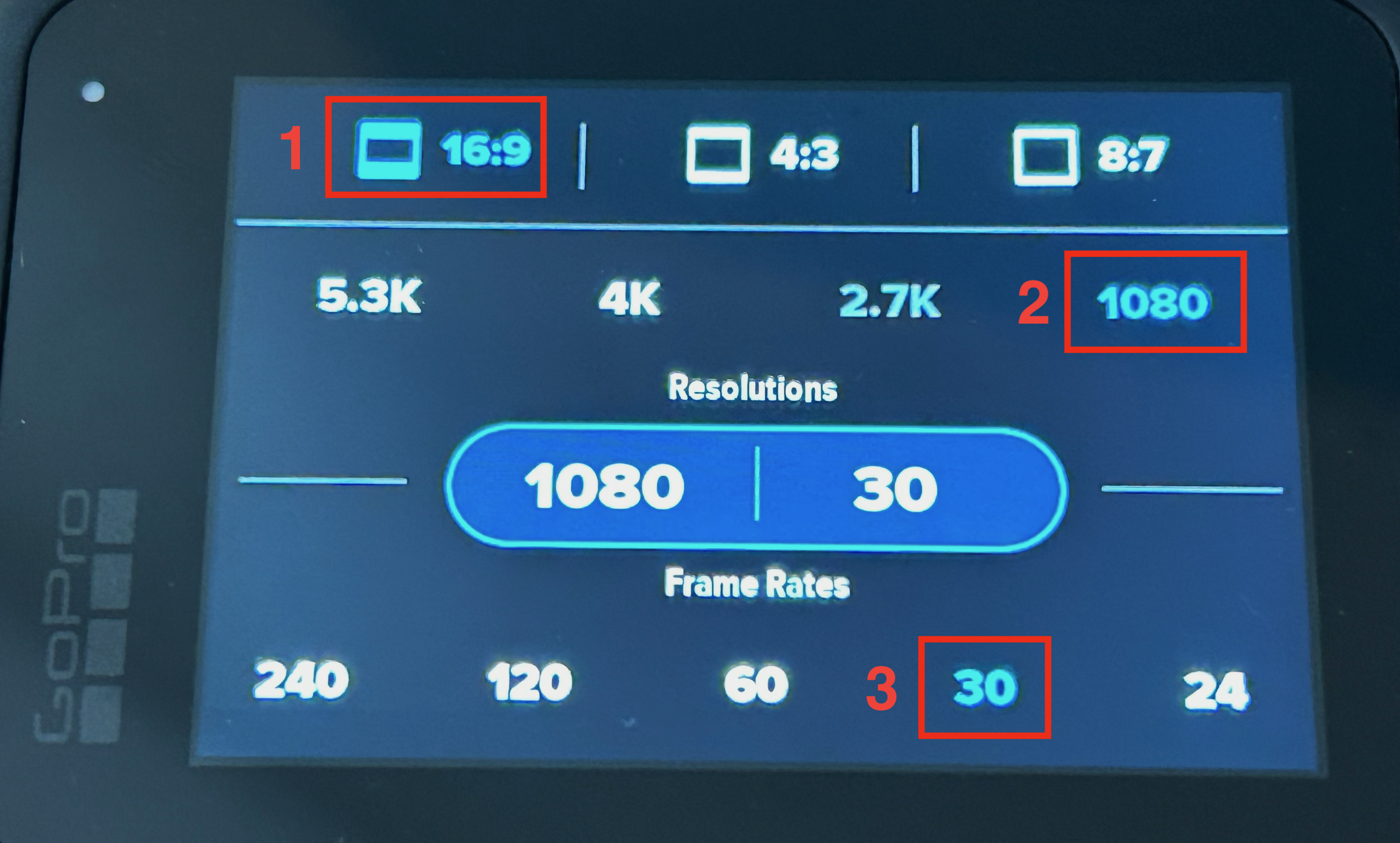
- Select the following options by tapping on the screen at their respective locations. Once complete, tap the center, blue bubble to return to the previous menu.
- 16:9 Aspect Ratio (#1)
- 1080 Resolution (#2)
- 30 FPS (#3)
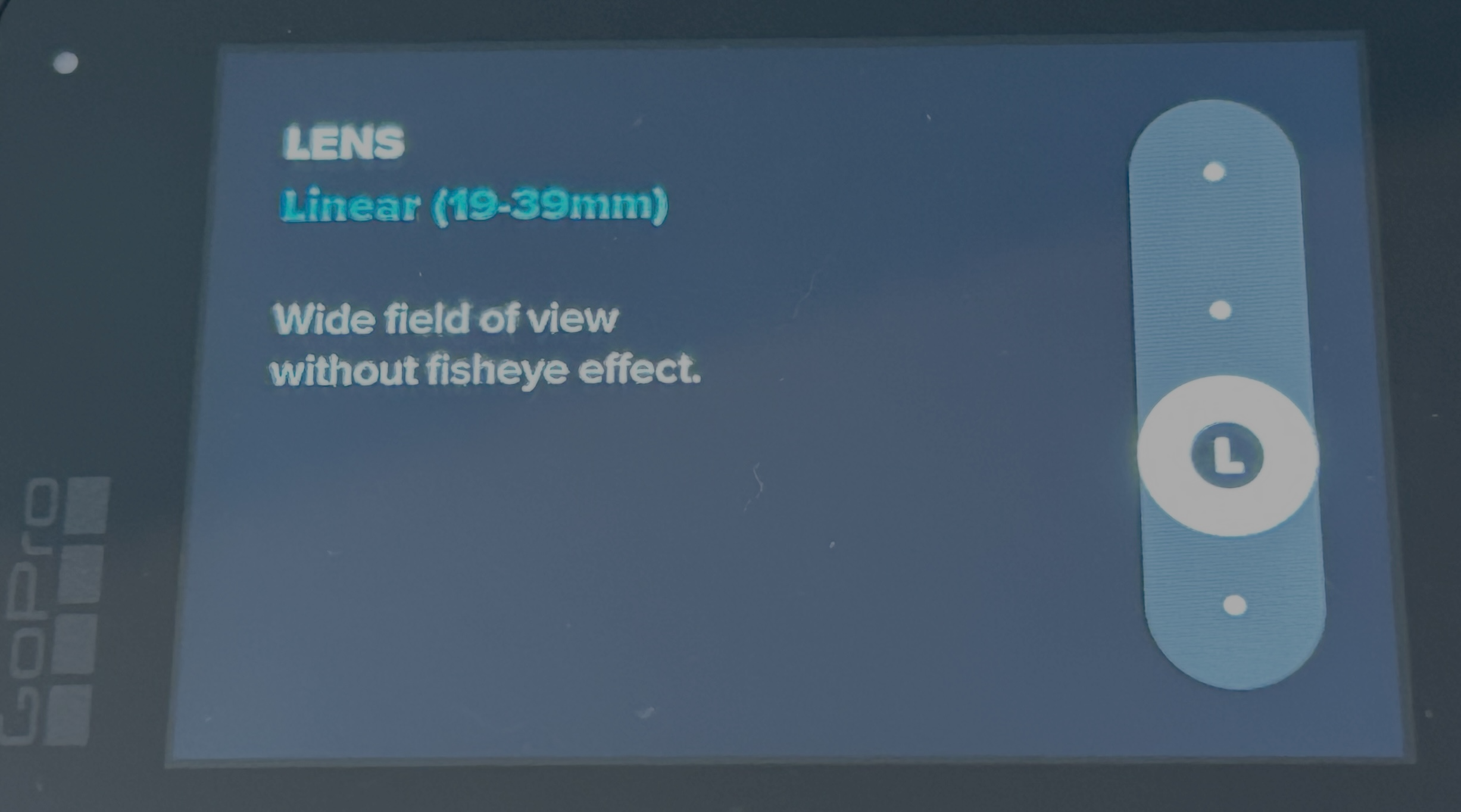
- Configure the Lens by tapping on the “Lens” option (#2).
- Using the slider, slide until the “Linear” option is selected. Once selected, tap on the middle of the screen to return to the previous menu.
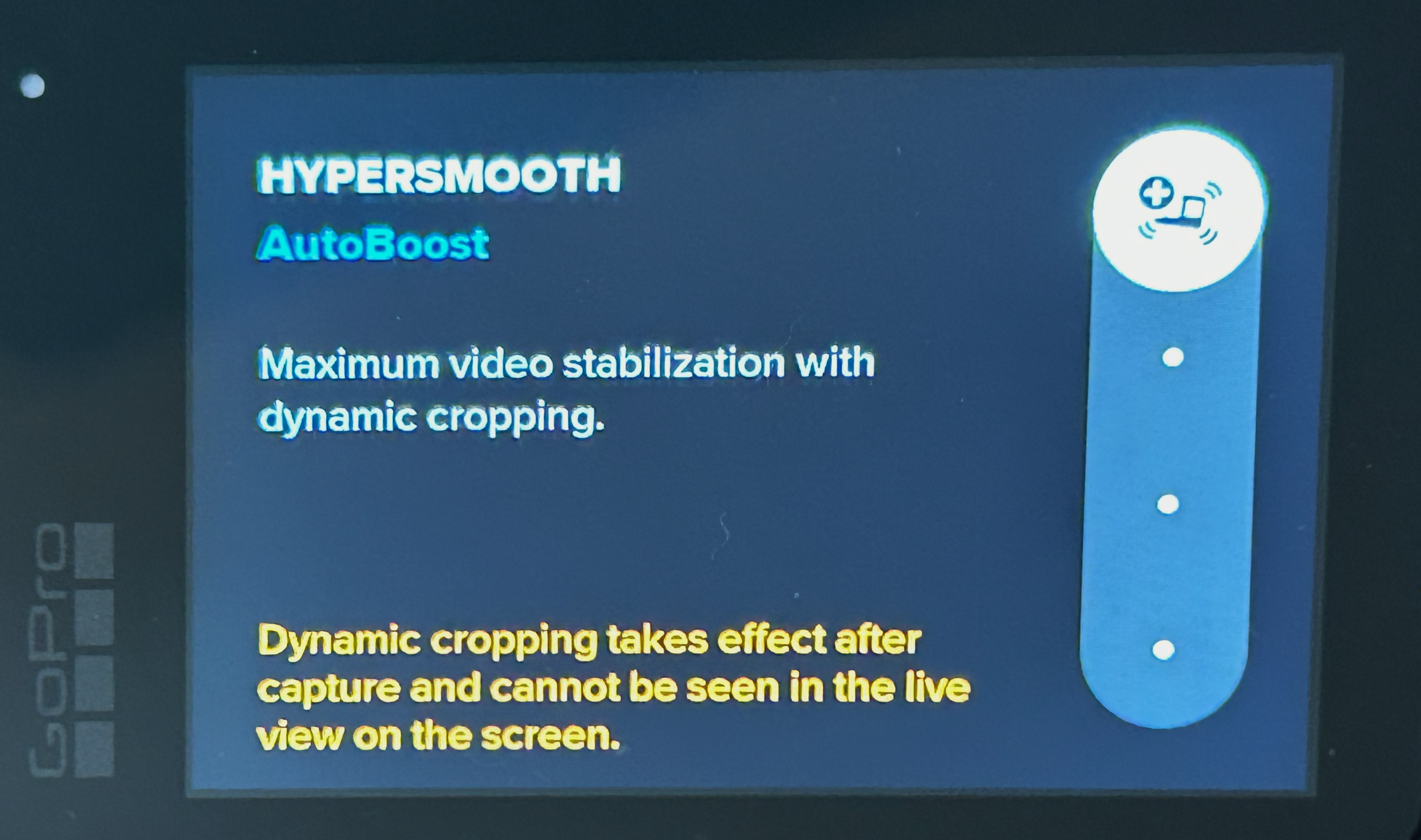
- If your GoPro has HyperSmooth functionality, configure the feature by tapping on the HyperSmooth option (#3).
- Using the slider, slide until the “AutoBoost” option is selected. Once selected, tap on the middle of the screen to return to the previous menu.
- Tap the “<” icon on the top-left of the screen twice to return to the main screen.